 AABrowser
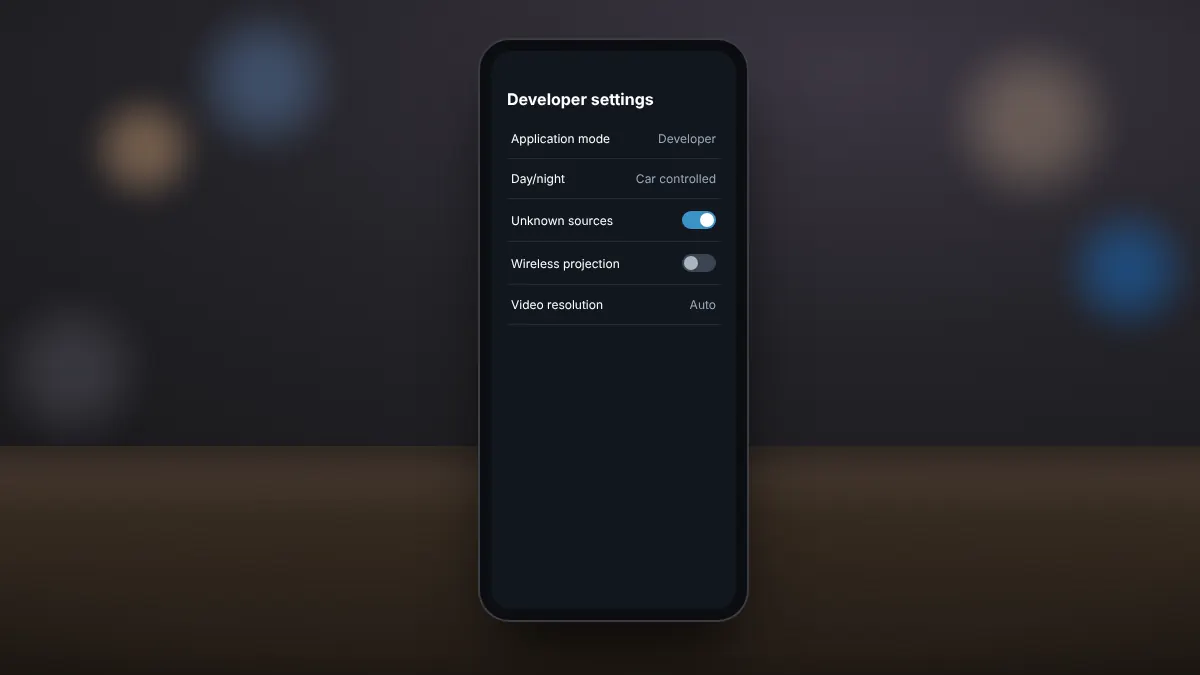
By default, Android Auto only shows apps installed from Google Play. To use a sideloaded app such as AABrowser, you switch on a setting called Unknown sources in Android Auto's hidden developer menu.
Step 1: Open Android Auto settings
On most phones, Android Auto lives inside the system settings rather than as a separate app icon. Open Settings, search for Android Auto, and open it. On some phones it is under Connected devices or Apps.
Step 2: Unlock developer mode
- Scroll to the bottom of the Android Auto settings page.
- Tap Version ten times in quick succession.
- Confirm the prompt that asks whether to allow development settings.
Step 3: Switch on unknown sources
- Tap the three-dot menu in the top corner.
- Choose Developer settings.
- Scroll to Unknown sources and switch it on.
Step 4: Reconnect to the car
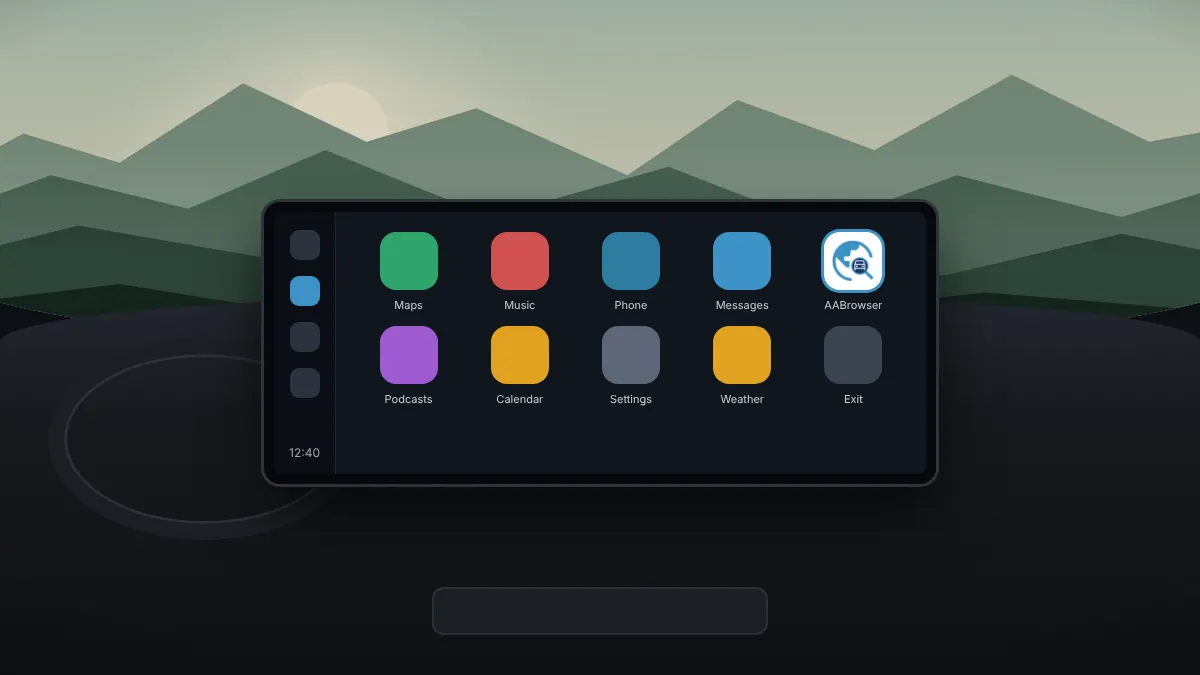
Disconnect and reconnect your phone. Sideloaded apps such as AABrowser now appear in the Android Auto launcher alongside your other apps.
Developer settings contain other options that can affect how Android Auto behaves. Change only the setting you need and leave the rest at their defaults.
Turning it off again
If you stop using sideloaded apps, return to Developer settings and switch unknown sources off. To hide the developer menu completely, use the three-dot menu and choose to quit developer mode.